INZONE M10S is equipped with various Gaming assist functions.
How to set up Gaming assist
You can display the Settings screen (OSD: On-Screen Display) by pressing the center of the joystick on the rear of the monitor.
You can switch the setting by moving the joystick down, then right to select Gaming assist.
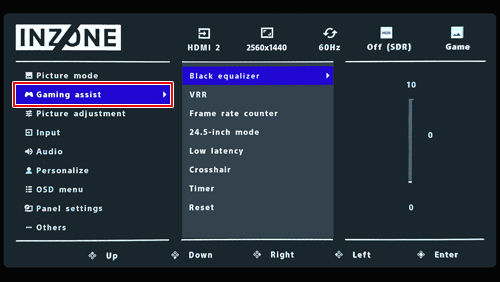
Gaming assist function that can be set with INZONE M10S
Black equalizer is a function that adjusts the brightness range. By turning it on, you can reduce overexposure even in bright places and improve visibility in dark places, making it easier to find enemies.
Comparison of the screen with Black equalizer Off and On| Off | On |
|---|
|

The screen appears slightly washed out, and the dark areas are pitch black and difficult to see.
|
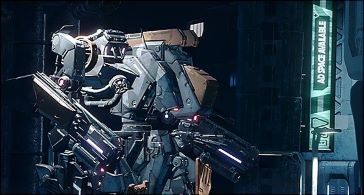
Visibility is improved in both bright and dark areas of the screen.
|
Note: The images above are examples of the display screen.
- You can toggle VRR (Variable Refresh Rate), which adjusts the number of images displayed according to the video on the display side.
- When VRR is on, the display's refresh rate is synchronized with the game's frame rate (fps), reducing stuttering (lagging), frame drops, and screen tearing (flickering), making gameplay appear smoother.
Notes:
- If you experience flickering with certain game content, try turning off the VRR setting to reduce the flicker.
- When Adaptive-Sync/VRR is on, Original for Aspect ratio cannot be selected.
When turned on, the frame rate (e.g. 480Hz) will always be displayed in the upper left corner of the screen, allowing you to see how smoothly the game is progressing.
Note: When using power saving settings/ECO mode, the frame rate will be fixed at 60Hz.
- You can change the screen display size from 27 inches to 24.5 inches.
- 24.5-inch mode offers two display positions—center-justified and bottom-justified—so you can choose based on your preference.
Notes:
- In 24.5-inch mode, the resolution is 2,368 x 1,332 pixels.
- If the desired image size doesn't appear after changing game mode settings, restart the game.
Turning Low latency on reduces input lag throttling in fast-paced games.
Note: Even if you set
Low latency to
On, it is not possible to completely reduce the input lag.
Turn on Crosshair and select the crosshair icon to display it at the center of the screen.
- The Timer will be displayed in the top right corner of the screen, allowing you to measure the elapsed time of the match. The countdown will begin from the set time, and will be displayed until the setting is turned off or the time reaches 0 minutes and 0 seconds.
- It's ideal for games with time limits or time trials.
Note: Even if the
Timer reaches 0 minutes and 0 seconds, the screen will not close, and the game or content being played will not stop.
Reset resets the Gaming assist settings.
























