Tips for using your soundbar / home theatre system
Here's an easy-to-understand guide for first-time users of Sony's soundbars and home theatre systems, including an introduction to basic functions, tips on installation, and hints on how to enjoy high-quality sound.
Click or tap a topic below to get started:
What is a soundbar?
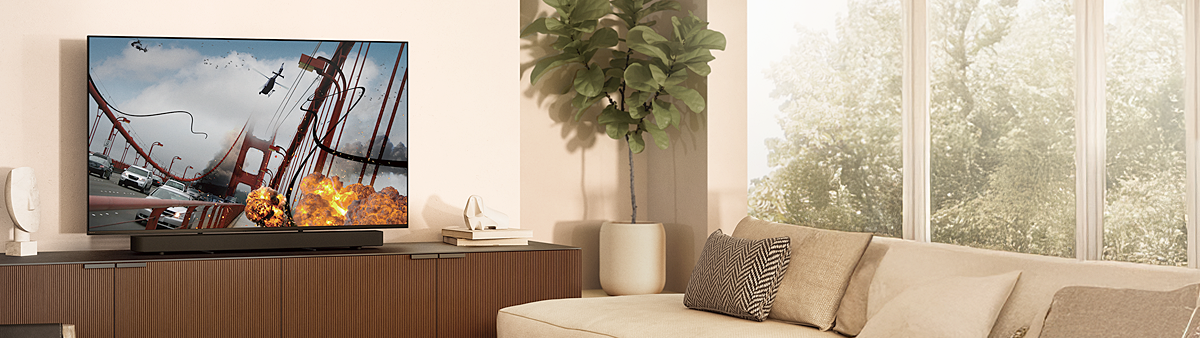
A soundbar is an audio device that outputs sound from your TV, as well as background music and sound effects from game consoles connected to your TV.
You can enjoy powerful sound by selecting a sound mode that best suits the content you are playing. This is ideal for those who feel the sound from the built-in TV speakers is not enough, or those who simply want to customise their audio experience.
TV stand or wall mount? Finding your ideal soundbar position
Where you place your soundbar is important. Always check the size of your TV, and place the soundbar in front of the TV stand or on the wall below the TV.
![]()
![]()
Putting the soundbar too close to the front of the TV might cover the TV sensor and block your remote control signal. Make sure the TV still responds to your remote control after adjusting the soundbar.
![]()
![]()
Make sure you install the soundbar correctly with full consideration of safety. If you are unsure about wall mounting, consult a Sony dealer or licensed contractor to install your soundbar.
Hint: Refer to your soundbar manual for installation details regarding the procedure, tools, dimensions, and positioning of your soundbar. You can find the product manual on our Support website. Simply enter and search for your soundbar model name, then select Manuals.
Connection and settings: Enjoy TV with realistic sound
Check the terminals on your TV first. The connection method for your soundbar, PlayStation®5, or Blu-ray Disc Player differs depending on the type of HDMI or audio terminals you use. It's also important to choose the right HDMI cable for your setup, such as standard, 4K, 8K, or an HDMI cable that supports high image quality.
We recommend using an HDMI cable supplied with the soundbar. If your soundbar does not include an HDMI cable, use an alternative HDMI cable that supports your soundbar, TV, and connected device(s).
If there is no sound from the soundbar or the sound skips, the HDMI cable and/or audio cable may not be properly inserted into the soundbar or TV. Unplug the cables and then firmly plug them back in.
If the issue is not resolved, the cable may be plugged into the wrong terminal. There are two types of terminals on the soundbar: an HDMI Output (ARC/eARC) jack and an HDMI Input jack. Make sure the HDMI cable is connected to the HDMI IN (ARC/eARC) jack on the TV and the HDMI OUT (ARC/eARC) jack on the soundbar.
If your TV (BRAVIA) and soundbar both support the Acoustic Center Sync function, you can enjoy a more immersive sound experience by outputting the sound from both the BRAVIA TV center speaker and soundbar. Refer to this article for supported BRAVIA TV models: Which Sony audio products support exclusive BRAVIA TV features?
Note: If your BRAVIA TV does not support the Acoustic Center Sync function, or you have a non-BRAVIA TV, you cannot use the TV as a center speaker.
How to use the Acoustic Center Sync function
- Using the supplied cable for your soundbar, connect the S-CENTER OUT jack on the soundbar and the S-CENTER IN jack on the BRAVIA TV.
- Press the SOUND FIELD button on the soundbar remote control, then select Sound Field: Effect On.
- Press the HOME button on the soundbar remote control, then select Setup → Advanced Settings on the home menu.
- In the Audio Settings menu, select Sound Field Setting → Sony | Vertical Surround Engine.
Note: The settings, name, and terminal position will differ depending on the soundbar model. For details, refer to your product manual on the Support website. Simply enter and search for your soundbar model name, then select Manuals.
Wireless audio playback: Connecting your smartphone to a soundbar
If your soundbar supports a network connection, you can easily connect your smartphone to enjoy your favourite music directly through the soundbar.
The soundbar's network function wirelessly transmits audio and other data using radio waves. The sound quality may decrease if the radio waves between the soundbar and playback device are blocked, or if there is radio interference from other wireless (wireless LAN) devices. Placing the wireless device and soundbar apart creates a more stable network connection.
When using a 5 GHz wireless (wireless LAN) network, you may need to wait a bit before using the soundbar after turning it on. To prevent interference with weather radar, the soundbar first needs to select the wireless channel it wants to use. This is normal and not a malfunction.
Add optional speakers to expand your listening experience
Check if the speakers are included with your soundbar or which additional speakers (subwoofer, rear speaker, etc.) you can add to it. With optional speakers, you can experience rich and powerful sound from your soundbar.
Check the following:
- Confirm that the subwoofer and/or rear speaker is connected correctly. If so, check the soundbar settings to see if the sound can be output from the subwoofer or rear speaker.
- Unplug the power cord from the wall outlet (mains) or AC adaptor for about 10 minutes, then plug the cord back in. This will resolve the issue when the soundbar has a temporarily unstable status.
- Depending on the audio format, the rear speaker may not be able to output sound.
For details, refer to your product manual on the Support website. Simply enter and search for your soundbar model name, then select Manuals.
Troubleshooting tips
Both the soundbar and playback device have software that allows them to connect to each other. When too much data is transferred from one device to the other, or there's a delay with the data processing, the soundbar will not work as expected.
If you experience any issues, refer to the steps below:
Turn off the playback device and turn it on again.
The settings will return to their initial status. Settings such as volume, function, sound settings, and/or personal information stored on the system may have changed. For details on precautions and how to reset the soundbar, refer to the Help Guide or this article: How to reset the soundbar or home theater system.
Hint: Make sure your TV and/or soundbar has the latest software available. Updating your device improves its performance, adds new functions, and includes other usage benefits. For details, refer to the Sony Support website. Simply enter and search for your soundbar model name, then select Firmware / Software.
























