IMPORTANT: This article applies only to specific products and/or operating systems. Check the Applicable Products and Categories section of this article before starting these steps.
Tips-1: Volume balance adjustment
|
Question:
Volume balance cannot be adjusted on the recording screen.
|

|
|
Answer:
- Tap [EDIT] to move to the editing screen.
|

|
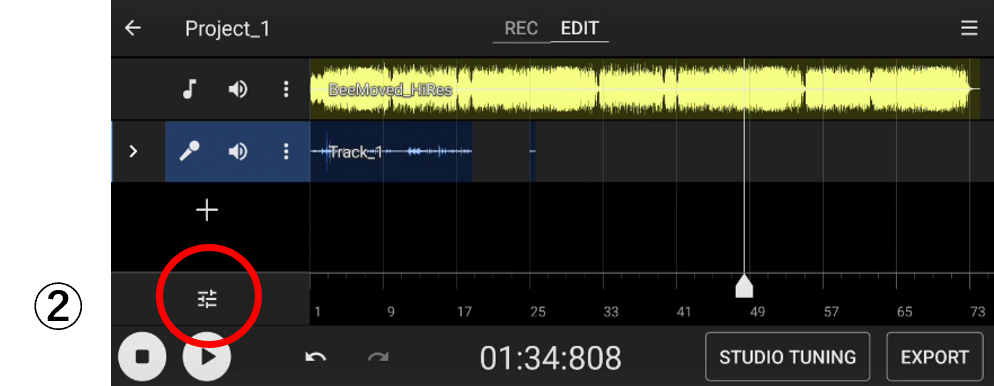
- Tap
 (adjustment control button) to show the slider. (adjustment control button) to show the slider.
|
|
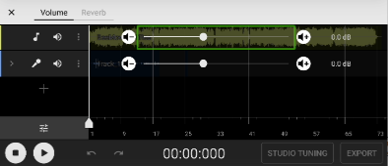
- Tap the " Increase volume button" or "Reduce volume button" to adjust the volume balance.
- Tap
 (Close button) and Tap [REC] to back to the recording screen. (Close button) and Tap [REC] to back to the recording screen.
Tips: The volume adjustment step is coarse where the volume is low and fine when the volume is high.
|
|
Tips-2: Delete track
|
Question: Tracks cannot be deleted on the recording screen.
|
|
|
Answer:
- Tap EDIT to move to editing screen.
|
|
- Tap (adjustment control button) to show the slider.
|
|
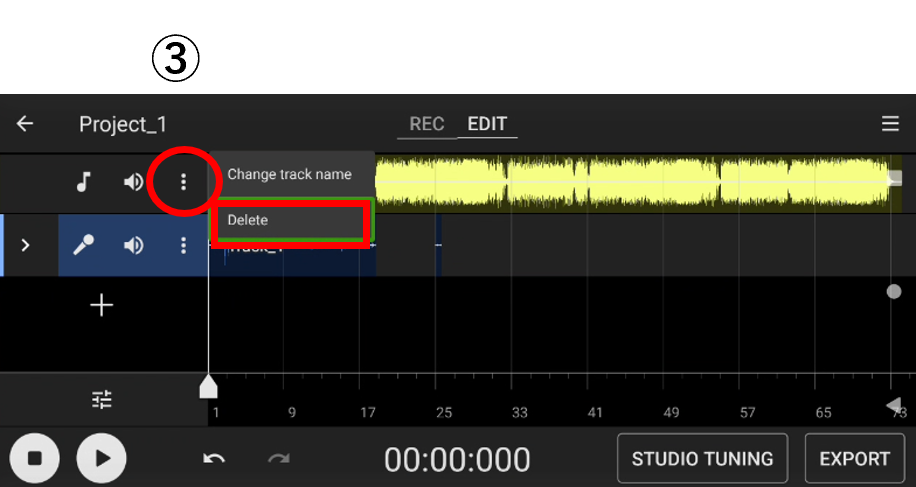
- Tap the menu button (three vertical dots) to select an option.
- Tap [REC] to back to the recording screen.
|
|
Tips-3: Setting the start point when recording from the middle.
|
Question: When recording vocals following the previous take, it is difficult to set the recording start position, and if you set the cursor before singing and start recording, the singing part of the next take will overwrite the previous take.
|

Set the cursor before singing

Overwrite the previous take
|
|
Answer 1: If you want to edit something that has already been overwritten.
|
- Move to the editing screen and tap
 (open track button) to expand the overwritten track. (open track button) to expand the overwritten track.
|

|
- The inside of the track is displayed for each take, so tap the overwritten take to select it.
The take is selected, and the knob (white shading) is displayed at the left end. Select the knob and move it to the right to move it to the end of the previous Take.
|


|
|
Answer 2: Before recording.
|
|
Record the tracks separately for each part. By separating the tracks, both sounds are maintained in the overlapping part.
(e.g., Track_1, Track_2)
|

|
Tips:4: Difficult to specify edit points in detail.
|
Question:
When I select and move a take etc. on the edit screen, my finger is in the way, and I cannot move it to the correct position.
|
  
My finger overlaps the knob.
|
|
Answer:
After tapping the editing knob, move your finger down while keeping your finger on the screen so that you can see the editing point, and then move your finger left or right.
By doing so, you can fine-tune the position while looking at the edit point.
|
 

|
Tips-5: When recording from the middle of the backing track, the playback timing of the recorded sound shifts.
|
Question:
When recording from the middle of the backing track, the playback timing of the recorded sound shifts.
|

After starting recording from the middle, when playing back, the backing track and the recorded sound are out of sync.
|
|
By tapping and sliding left and right, it is difficult to make small movements even if you try to correct the playback position of the recorded sound.
|

|
|
Answer:
- Tap the waveform you want to move.
|

|
- Tap
 (Menu button) to display the menu. (Menu button) to display the menu.
|

|
- Tap "Move left / Move right" from the menu.
|

|
- You can move with a fine value of ± 5 msec and check the amount of movement with Toast
|

|
Tips-6: When recording from the middle of the backing track, the playback timing of the recorded.
|
Question:
The track is accidentally moved due to an unintentional movement operation during trimming or scaling operations.
|

|
|
Trimming operation:
|
Tap the waveform and move while tapping the knobs (B) on the left and right ends that are displayed.
|
|
Scaling operation:
|
Pinch in and pinch out with two fingers within the above red frame included on the waveform
|
|
Movement operation:
|
Move while tapping the inner center (A) of the knobs (B) on the left and right ends that are displayed by tapping the waveform.
|
|
Answer:
It does not have a lock function that prevents it from moving.
If you cannot restore it with the Undo button (yellow circle), use the same workaround as Tips-5 to restore the incorrect movement.
|

|
Tips-7: If I move the waveform a little, it will return to its original state.
|
Question:
I want to move the waveform a little, but I can't because the waveform returns to its original position when I move it a little and release my finger.
On the other hand, if I move more than a certain amount and release your finger, the waveform can be moved to the position where you released my finger.
|


|
|
Answer:
- If you move the waveform you want to move more than a certain amount (36dp) after touching it, you can see that the original waveform becomes dark and it is in a movable state.
|
Note: Applicable to 1.0.0.A.0.39 version or later.

|
- After the original waveform is dark, return your finger to a slight position and release it to move it to the released position.
|


|
























