






















Please select a topic below for troubleshooting assistance for your camera:
 Battery
 Overheating article
 Lens issues (Focus, Error, Fungal) articles
- The camera does not focus using the autofocus (AF) setting
- How to identify back or front focus issues
- The camera does not recognize the lens and an error message is displayed.
- A-mount and E-mount compatibility
- What is the difference between the LA-EA1, LA-EA2, LA-EA3, LA-EA4 and LA-EA5 lens mount adapters?
- What is lens fungus and how I can prevent damage to my camera lens?
- How to clean dust or dirt from the inside of the lens
 Creators' App & Shooting Tips
 Memory card
- The memory card is not recognized by the camera.
- Mastering the Memory Card for your Sony Camera - Storage, Tips, Compatibility, and Data Recovery
- SD and CFexpress memory card information for video recording with Alpha cameras
- Can data or images that have been erased from a memory card or USB storage device be recovered?
 USB & HDMI Streaming
Note: Not all cameras support USB Streaming feature, check your camera's Help Guide to determine if USB Streaming is available for your model.
- What is the difference between the Imaging Edge Webcam software and the USB Streaming function?
-
During use, the video is suddenly cut off. The camera is hot to the touch.
- How to use your Alpha or DSC camera as a webcam to live stream with the USB streaming function
- How to use a Sony camera as webcam with the Imaging Edge Webcam software
- How to use your Alpha or DSC camera to live stream using the HDMI port
 (Auto Mode).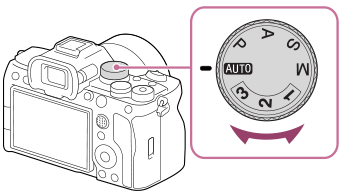
 (Shooting) → [Shooting Mode] → [
 Shoot Mode] → [Intelligent Auto].
- If your questions aren't covered in this guide, please enter your query in the search bar on the main Sony support website.
- You will find Frequently Asked Questions to help you get started with the Sony α (Alpha) Camera here.
- For information on warranty, please select your country / area from Warranty Information page
- If your camera has the following issues below, please consult your nearest Authorised Sony Service Center
- Physical damage (for example, liquid damage, improper handling, selector knob/button damage, etc),
- Sensor damage
- LCD display damage
Note: Physical damage is not covered by the standard warranty.
Contact support
Contact our Support team
Warranty Information
Find information on Tourist Limited Warranty
Service Centres
List of Sony offices in Asia Pacific region that provide after-sales service activities
Professional product support and services
Find support information for Broadcast & Professional products
Support by Sony (Mobile App)
Never miss an update again! Find information and receive instant notifications about your product

