

Burn to 12cm DVD
Nero 6 Ultra Edition
Import transferred files in the DVD authoring software, and burn them to a 12cm DVD. The following shows you the instructions for using software Nero 6 Ultra Edition.
* These instructions are based on the software available in the North America market.
*You can also use other software to burn a 12cm DVD.
1. Start up Nero 6 Ultra Edition and slect movies to copu to a 12cm DVD. | |
1. Click [Start] -> [All Programs] -> [Nero] ->[Nero StartSmart] to start up Nero StartSmart (hereinafter referred to as StartSmart). |
 |
2. Point the cursor to [Photo and Video] in the icon list of StartSmart. |
 |
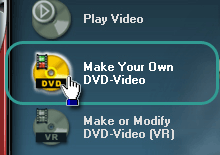
3. Click [Make Your Own DVD-Video]. |
 |
4. NeroVision Express 3 starts up. |
 |
5. Selected files are displayed in the selected order in the [Content] screen. |
 |
6. Click [Next]. |
 |
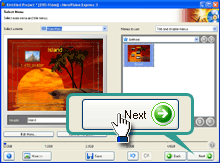
7. Create a menu in the [Select Menu] screen and click [Next]. |
 |
2. Burn to a 12cm DVD. |
|
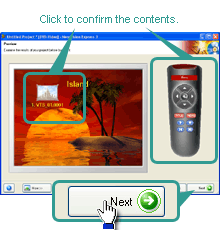
1. Confirm the contents to burn in the [Preview] screen. Click the button of each title or chapter on the [Preview] screen, or use the remote controller on the right to preview. After confirming the contents, click [Next]. |
 |
2. In the [Burn Options] screen, confirm a recordable 12cm DVD is inserted in the drive indicated in [Current destination], and click [Burn]. |
 |
3. The software starts burning to the 12cm DVD. |
 |
4. When completed, the message "Burn process completed successfully. Would you like to save the log file?" appears. |
 |
