
 Operation Search
Picture Effect
Allows you to shoot a still image with an original texture according to the desired effect.
-
Set the camera to shooting mode.
-
 (REC Mode)
 (Picture Effect) desired mode
-
If you want to select other Picture Effect mode, select from REC mode.

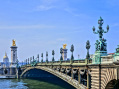
 (HDR Painting) (HDR Painting) |
Allows you to shoot multiple images with different exposures to create a single image that looks like an oil painting.
 |
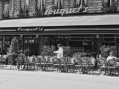
 (Rich-tone Monochrome) (Rich-tone Monochrome) |
Allows you to shoot multiple images with different exposures to create a single, sharp monochrome image.
 |
 (Miniature) (Miniature) |
Allows you to retouch an image as if you are shooting a miniature or diorama when you shoot landscapes or other scenes. You can get a partially blurred or high contrast image. The part you want to blur is displayed on the screen as translucent. Touch MENU
[Area of emphasis] to change the part.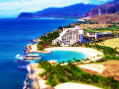 |
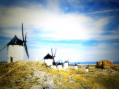
 (Toy camera) (Toy camera) |
Allows you to shoot images with effects such as tunnel effect, high contrast, or color cast as if they were shot with a toy camera.
 |
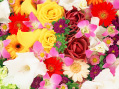
 (Pop Color) (Pop Color) |
Allows you to shoot a pop art-like colorful image with emphasis on the color tone.
 |
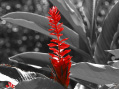
 (Partial Color) (Partial Color) |
Allows you to shoot an image that makes a strong impression by leaving a specified color on portions of a monochrome image.
 |
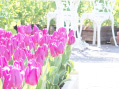
 (Soft High-key) (Soft High-key) |
Allows you to shoot soft, clear images with an emphasis on brightness.
 |
Note
Related Topic
